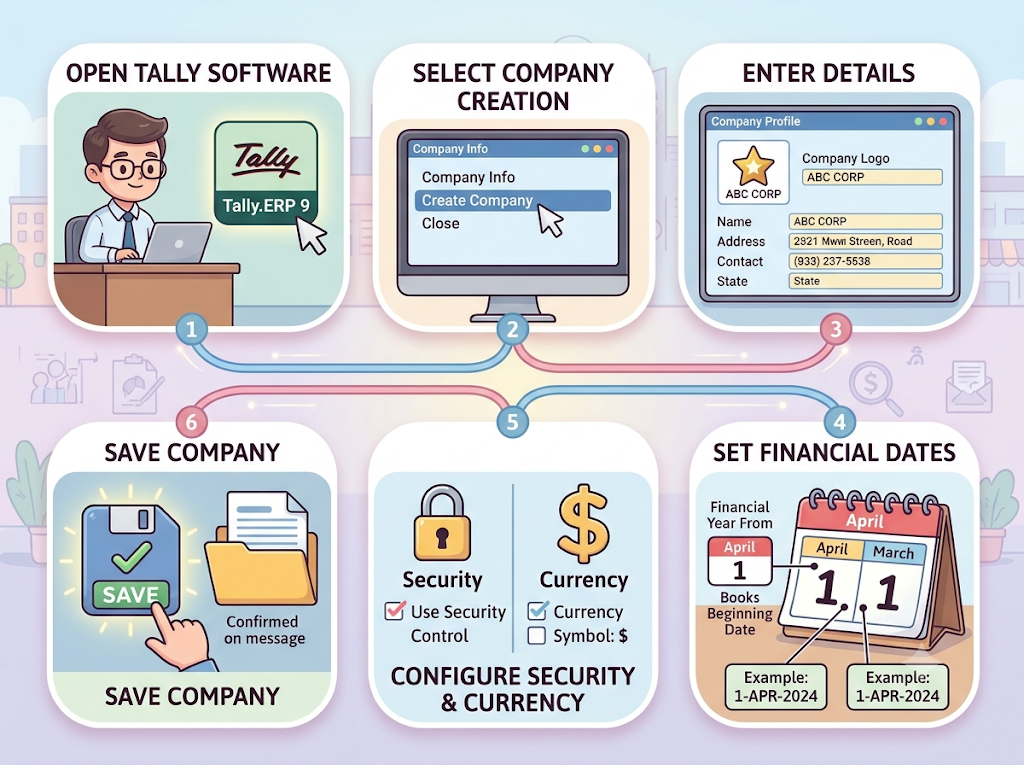
Before recording the first sale or purchase, a business must create its company in Tally.ERP 9. Think of this as opening a separate digital office where its accounting records will be maintained.
Creating a company in Tally means setting up its details in the software. It does not mean legally registering a business.
Steps to Create a Company in Tally.ERP 9
Step 1: Open Tally.ERP 9
Start the software. If another company is already open, press Alt + F3 to open Company Info and select Create Company.
Step 2: Enter Company Details
Enter the company name, mailing name, address, and other required contact details.
Step 3: Specify the Data Directory
Enter or confirm the directory where the company’s data will be stored.
Step 4: Enter Financial Year Details
Specify the date from which the financial year begins and the date from which the books of account are to be maintained. These dates depend on the business’s accounting requirements.
Step 5: Configure Security Options
Set security options, such as TallyVault password protection and user-access controls, if required.
Step 6: Select the Base Currency
Choose the appropriate base currency. For a business maintaining its accounts in Indian rupees, this is generally ₹.
Step 7: Save the Company
Check the information entered and press Ctrl + A to accept and save the company details. The company will then be available for maintaining its accounts in Tally.ERP 9.
Exam-ready answer
5. Explain in detail how a company is created in Tally.ERP 9.
The procedure for creating a company in Tally.ERP 9 is as follows:
- Open Tally.ERP 9 and select Create Company.
- Enter the company name, mailing name, address, and contact details.
- Specify the directory for storing company data.
- Enter the financial year starting date and the books beginning date.
- Configure security options, if required.
- Select the appropriate base currency and related settings.
- Verify the details and press Ctrl + A to accept and save the company.
The company is now created, and its accounting transactions can be recorded in Tally.ERP 9.
Remember the sequence: Open → Create Company → Enter Details → Set Dates → Configure Options → Save.